Background
With multiple languages and projects in parallel, local environments go out of control easily. Even with directory conventions and version managers, toolchain conflicts keep piling up.
Some tools are installed via curl plus their own upgrade commands, some via brew. Project A needs Terraform 1.3.5, project B still wants 1.2.0. On top of that, Java is managed via asdf-vm, Go via gvm, Node via nvm – each with different mental models.
On Windows (WSL), I revisited DevContainer and gradually turned common projects into dedicated dev containers: on‑demand, isolated, easy to rebuild.
Reference: Developing inside a Container using Visual Studio Code Remote Development
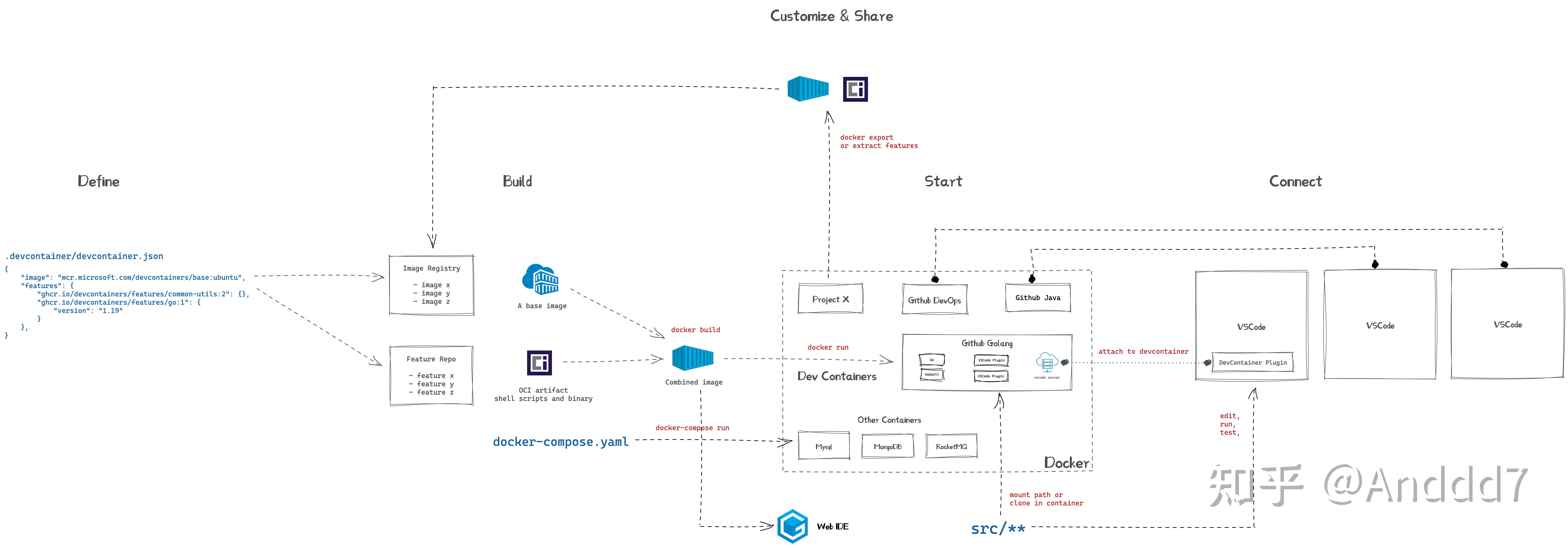
Define
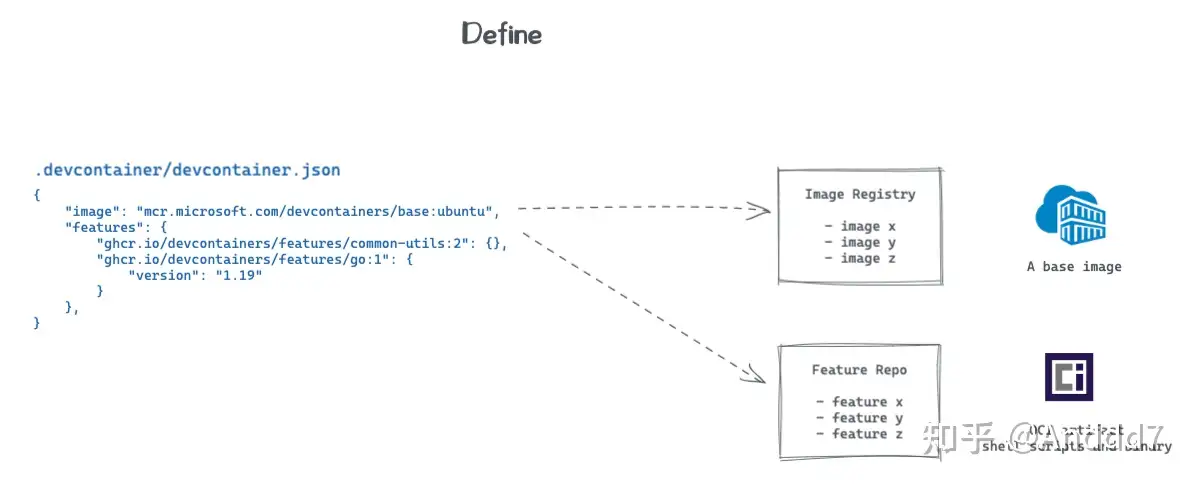
DevContainer uses JSON to describe the dev environment. The key pieces:
image: base container image – see containers.dev: Templates- Official templates exist for many languages and stacks
- You can also build your own (with a VS Code server preinstalled)
features: scripts and tools to install – see containers.dev: Features- The spec defines a standard interface for features, so you can easily publish your own
- Features can be shipped as OCI artifacts in registries
Build & Start
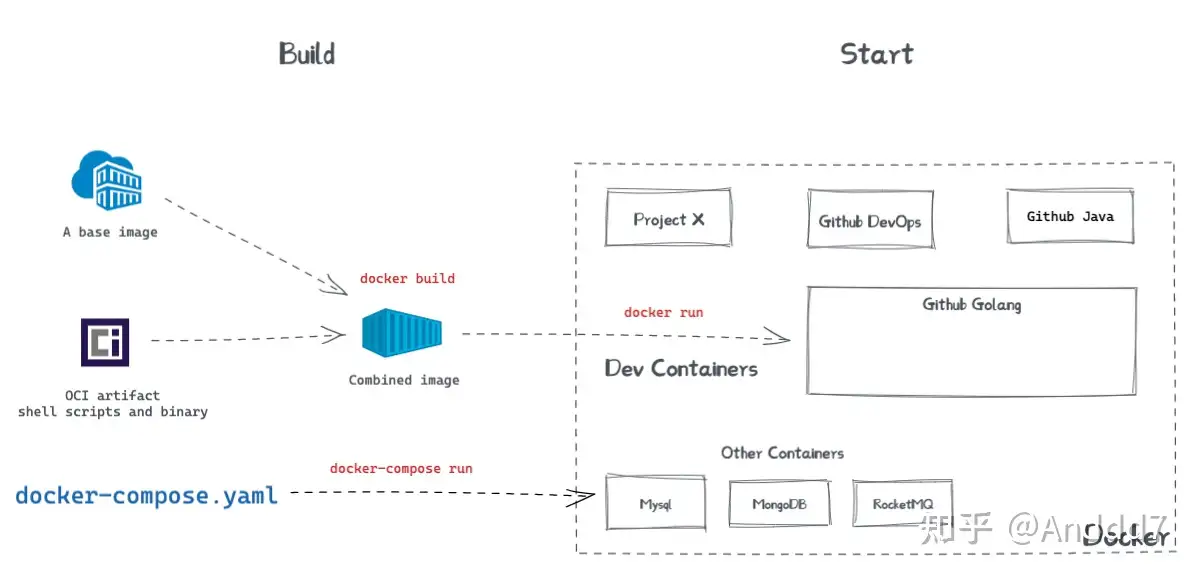
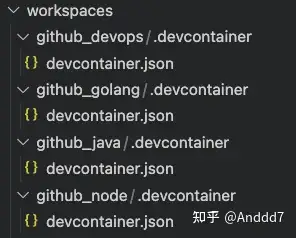
You can use the VS Code command Create Dev Container to set things up, or you can write .devcontainer/devcontainer.json yourself. When you open the project, VS Code will detect it and offer to Reopen in Dev Container.
When you confirm, DevContainer (CLI) builds a new image and starts the matching container.
Patterns that work well:
- Split images by language, frontend/backend or project
- Containers don’t affect each other
- If the container is missing a tool, either:
- Edit
devcontainer.jsonand reload, or - Install ad‑hoc inside the container
- Edit
If you need databases or middleware, you can bring them up with docker‑compose.
See: Create a development container using Visual Studio Code Remote Development
Connect
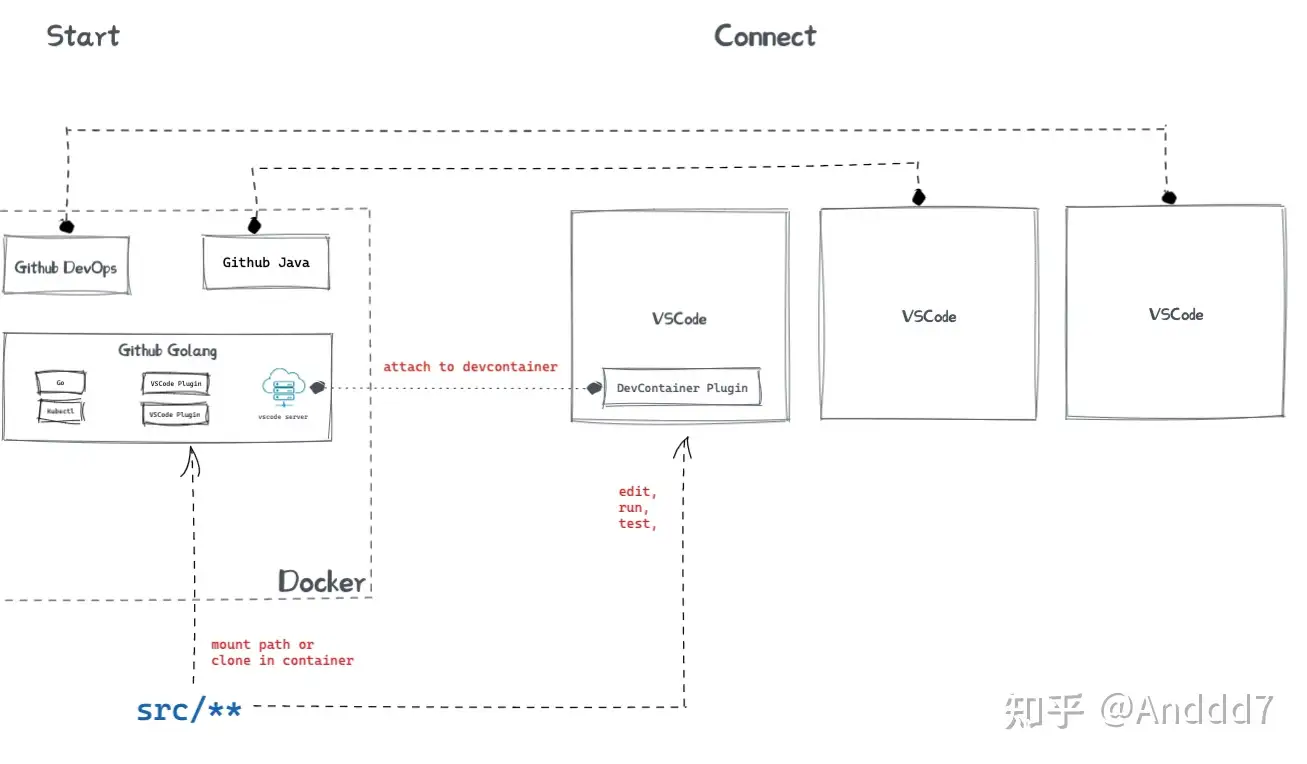
VS Code then connects to the server running inside the container via the DevContainer extension. From that point on, you’re editing files in the container.
You can either:
- Mount your local project into the container as a volume, or
git clonedirectly inside the container
On macOS and Windows, Docker runs in a VM, so heavy volume mounts can be slow. In that case I prefer cloning directly inside the container.
(The downside: other tools on the host can’t edit the same files.)
"Enjoy your Dev Environments"
Tips
- You can share dev environments with others via
devcontainer.jsonor even exported images - GitHub Codespaces uses the same config, so you can take the same setup to the cloud
- Extensions installed inside the dev container are scoped to that container and won’t pollute your global VS Code
- With Profiles you can separate shortcuts and VS Code settings further, if you care
- You can run multiple dev containers at the same time
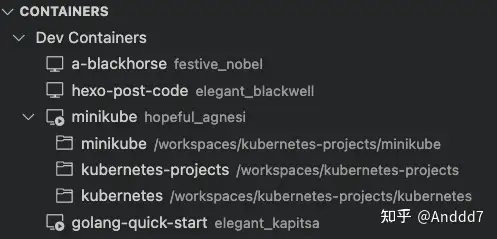
- A single dev container can host multiple projects:
- Use the Command Palette to create a dev container or a starter project
- Configure
devcontainer.json, then Reopen in Container - Once inside,
mkdirandgit clonenew repos - Use Open Folder for each project
- Later you can use Open Recent to jump back directly into projects inside the container


Closing
From both imagination and execution, VS Code is far ahead of most IDEs – and Microsoft/GitHub’s ecosystem makes it even stronger. With Copilot / ChatGPT in the loop, VS Code as the "default universe IDE" is basically a done deal.
For large companies, dev containers and remote coding are not just toys:
- Better dev experience
- Centralized control over source code and secrets
- Potentially lower total cost than buying every engineer a maxed‑out laptop.